Setup and operating guide

Mini Alarm Hub and mobile App

Connect the Hub, pair Apeiron Guard sensors and manage alerts from the mobile App.
NetworkDedicated 2.4 GHz Wi-Fi
PowerStable USB power source
RequiredApeiron Guard mobile App
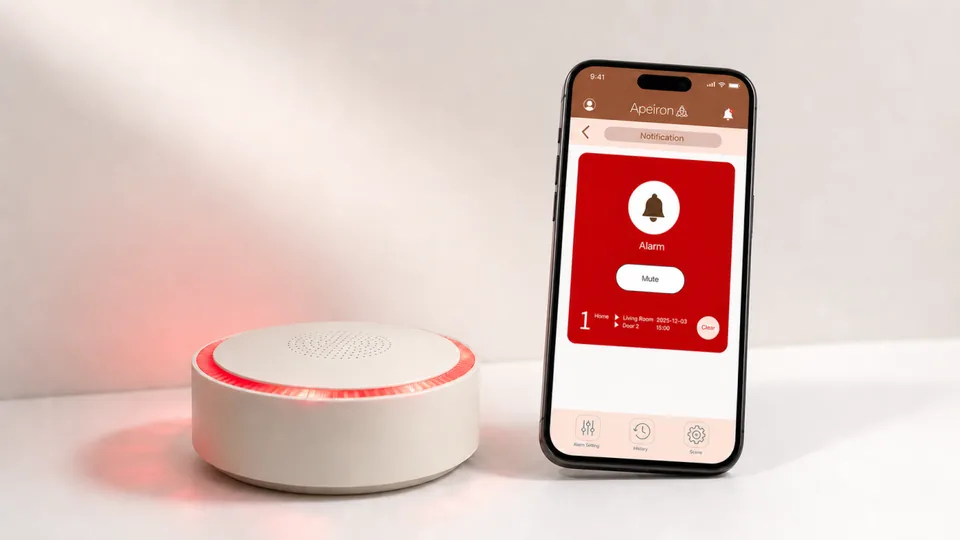
Apeiron Guard Mini Alarm Hub sounding an alarm beside a phone showing a mobile alarm notification
Mini Alarm Hub with a real-time mobile App alarm notification.
Guide contents

Before you begin

Prepare the power, network and account details before putting the Hub into pairing mode.

2.4 GHz Wi-Fi is required. The Mini Alarm Hub does not support a 5 GHz-only network. Connect the phone to the intended 2.4 GHz Wi-Fi network before adding the Hub.
Stable powerUSB-C connects to the Hub. USB-A connects to an appropriate regional power adapter.
Mobile AppInstall the Apeiron Guard App and keep access to the registration email account.
Sensor accessBe ready to trigger each sensor while the App displays Awaiting Pairing.

Power the Hub and activate pairing

Use a stable power source, then put the Hub into pairing mode before opening the App setup flow.
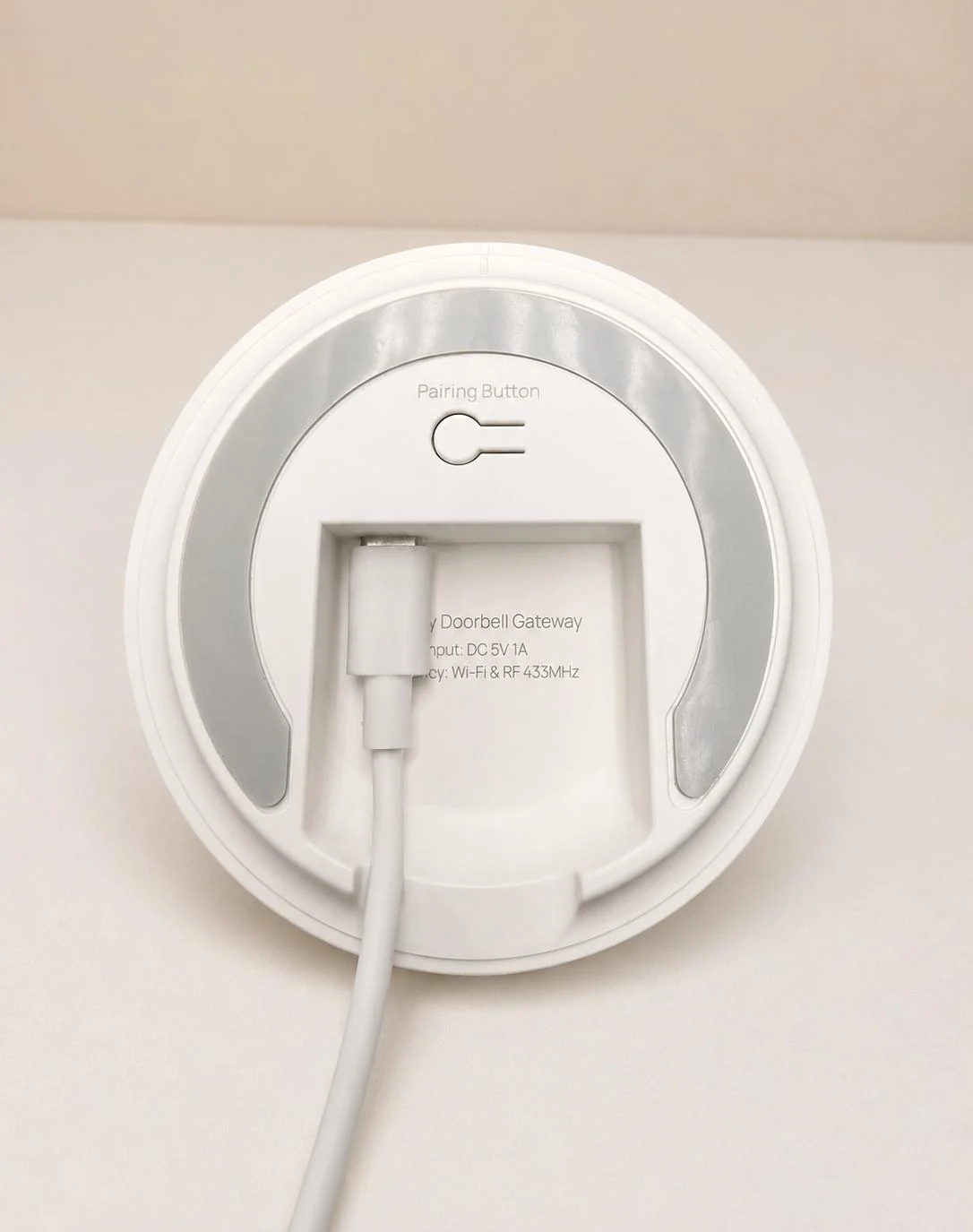
USB-C cable connected beside the pairing button on the bottom of the Mini Alarm Hub
Connect powerInsert the USB-C connector into the bottom of the Hub.
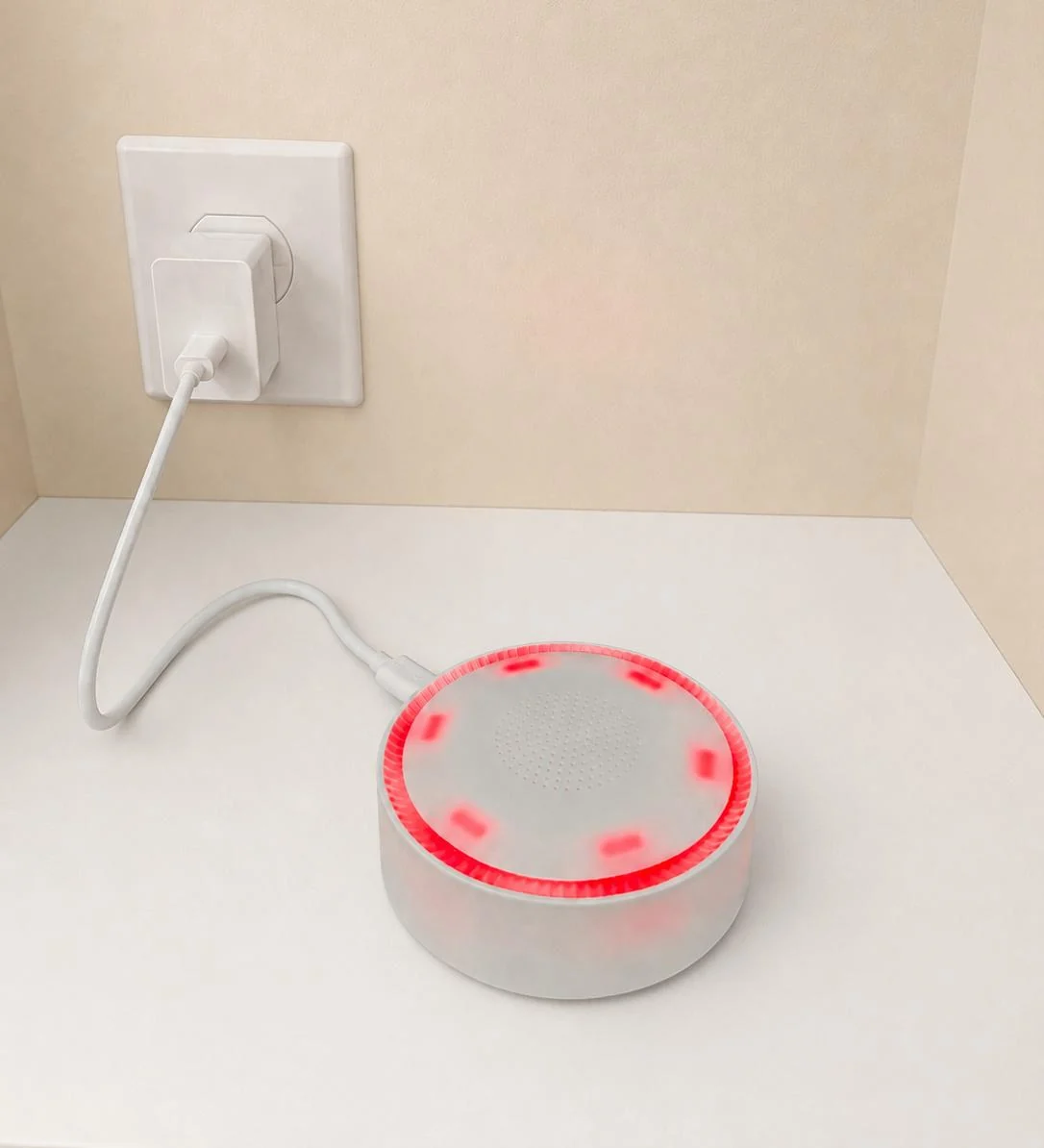
Powered Mini Alarm Hub with its indicator light flashing red
Activate pairing modePress and hold the bottom Pairing Button until the indicator begins flashing.
Success check: the indicator light flashes and the Hub is ready to be discovered by the App.

Open the App and sign in

Create an Apeiron Guard account or log in before creating the first protected Zone.
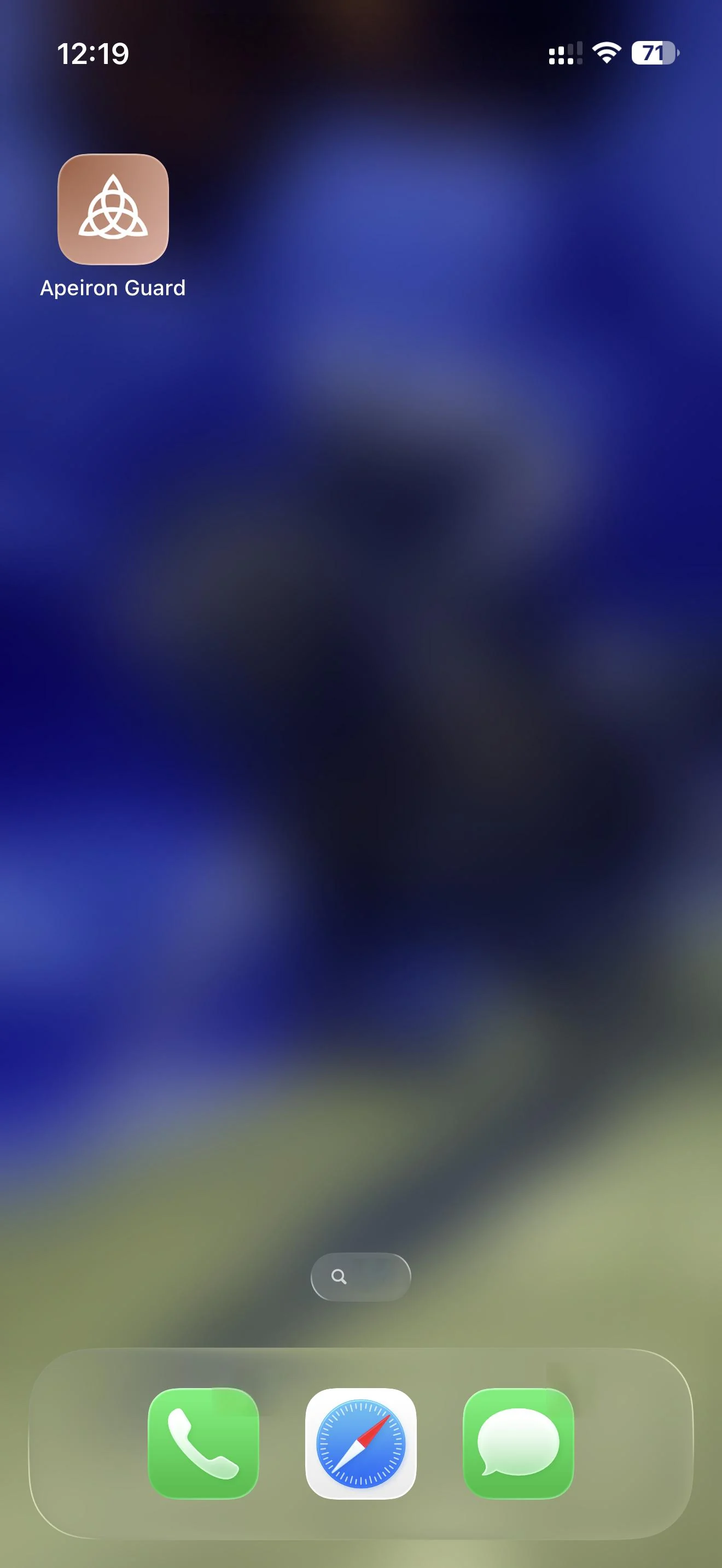
Apeiron Guard App icon on a phone home screen
Open the AppDownload and install the Apeiron Guard App, then tap its icon.
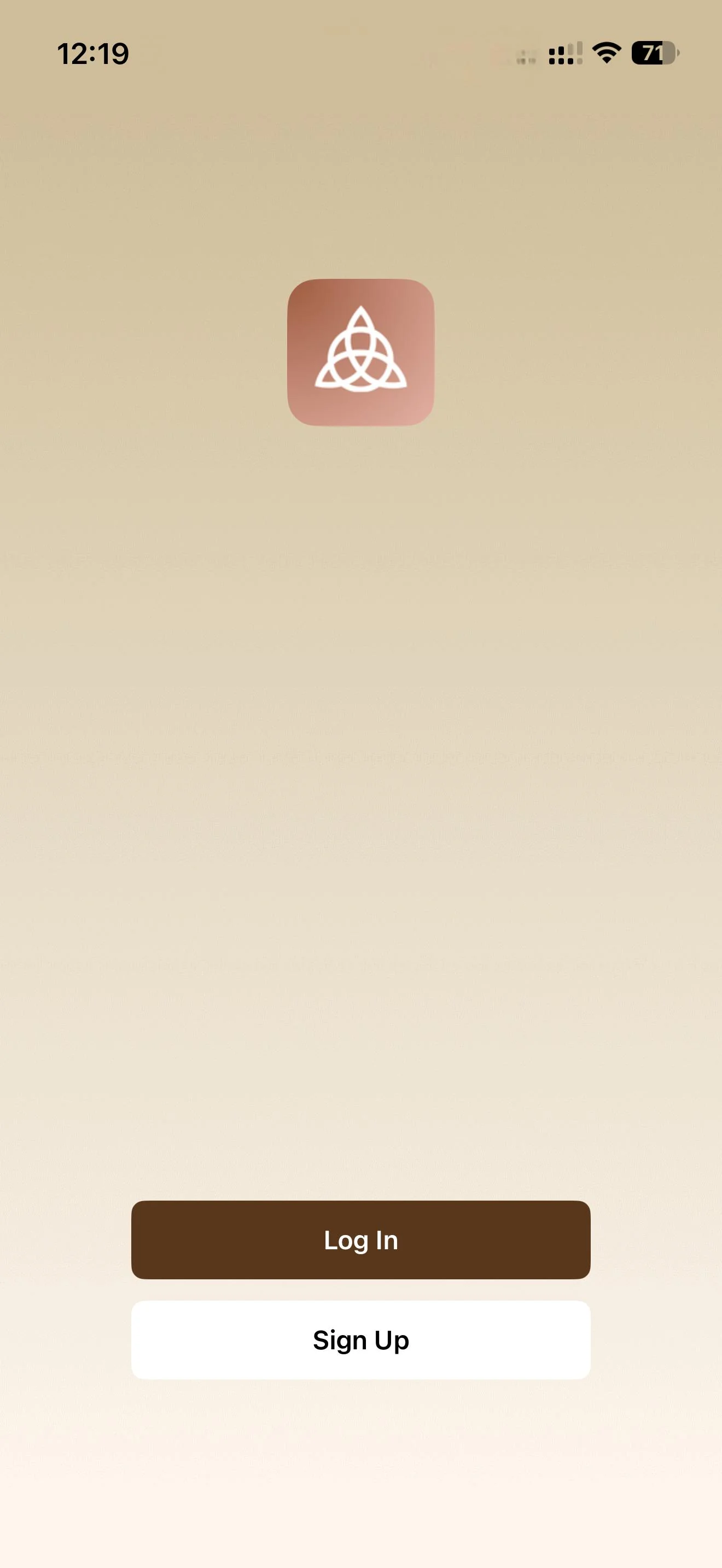
Apeiron Guard App login and sign up screen
Log in or sign upTap Log In for an existing account or Sign Up to create one.
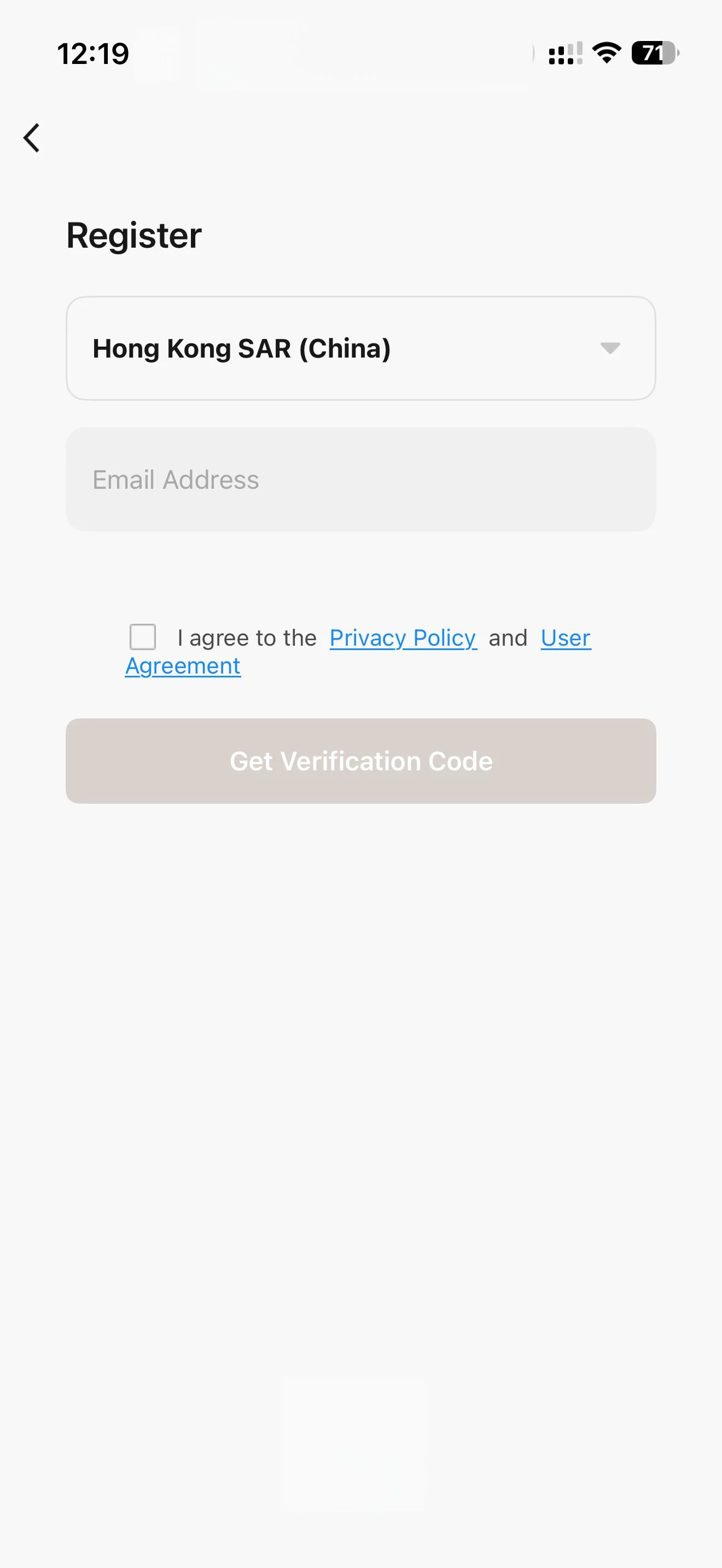
Apeiron Guard App account registration screen
Verify the accountSelect the country or region, enter the email, accept the agreements and enter the emailed verification code.

Create a Zone and add the Hub

A Zone identifies the location or protected area. The Hub and its sensors are managed inside that Zone.
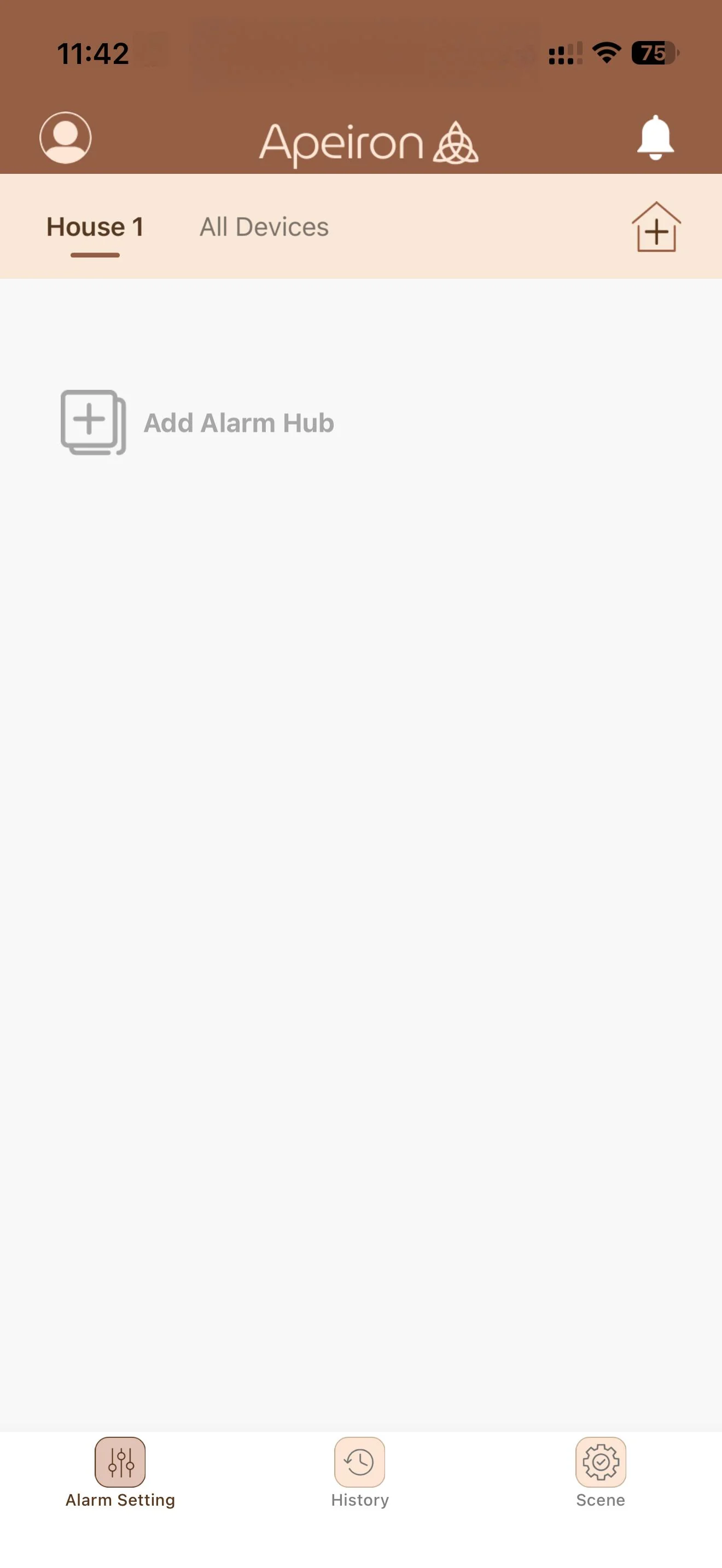
Add Zone control in the Apeiron Guard App
Add a ZoneTap Add Zone from the home screen.
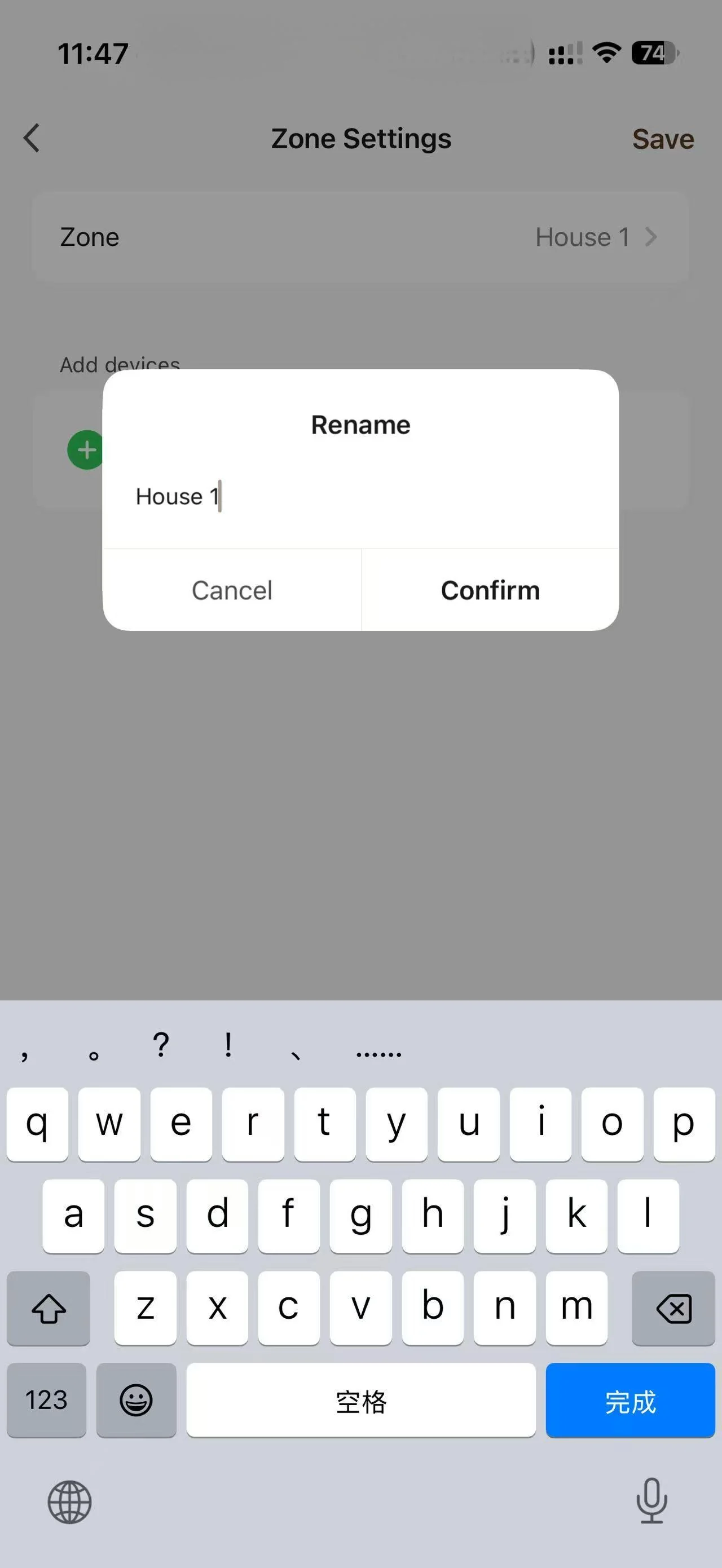
Zone naming dialog in the Apeiron Guard App
Name the locationEnter Home, Office, Ground Floor or another clear location name, then confirm.
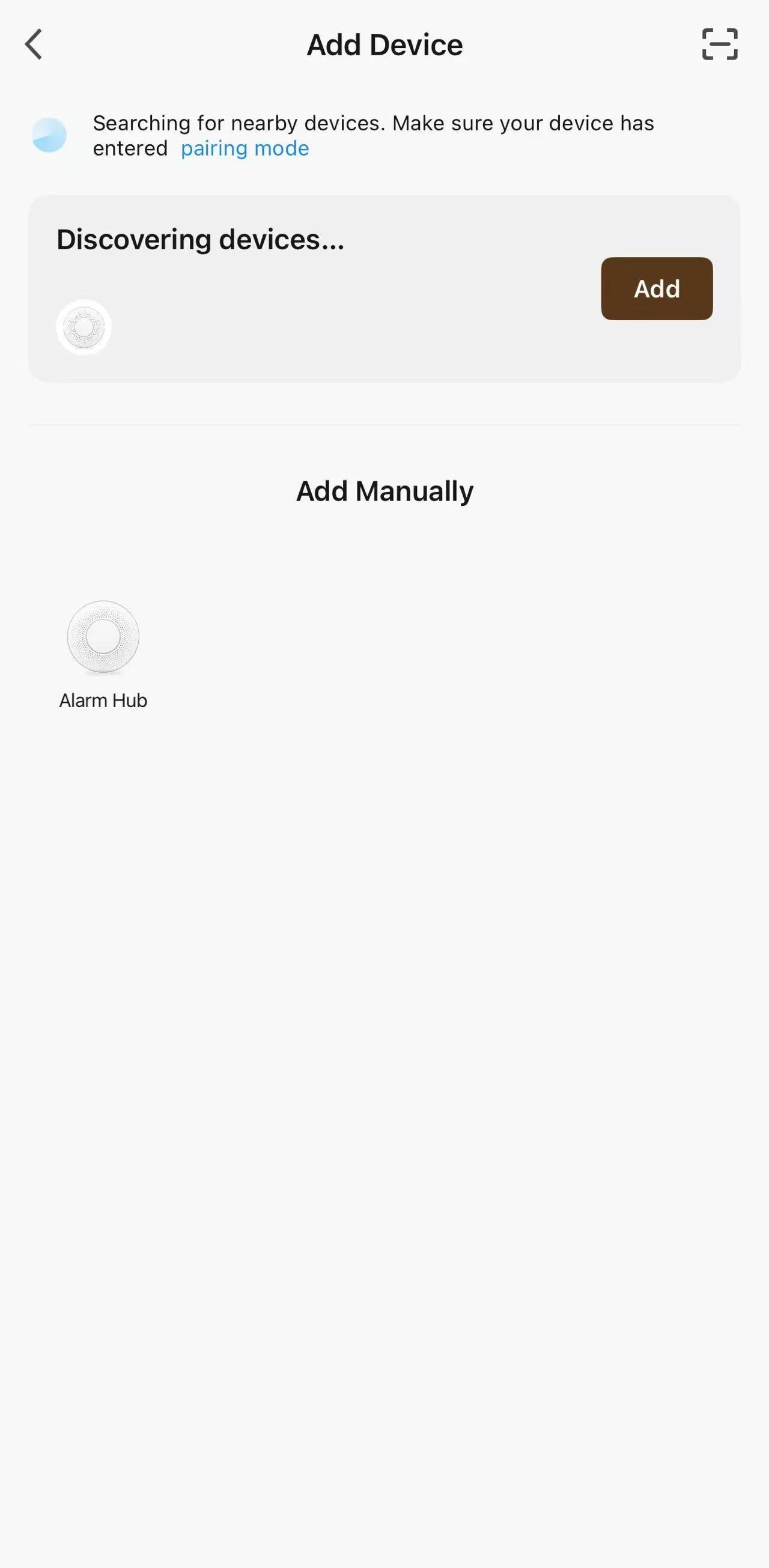
Add Device screen discovering a Mini Alarm Hub
Discover the HubInside the Zone, tap Add Alarm Hub. Keep the Hub flashing and tap Add when it appears.
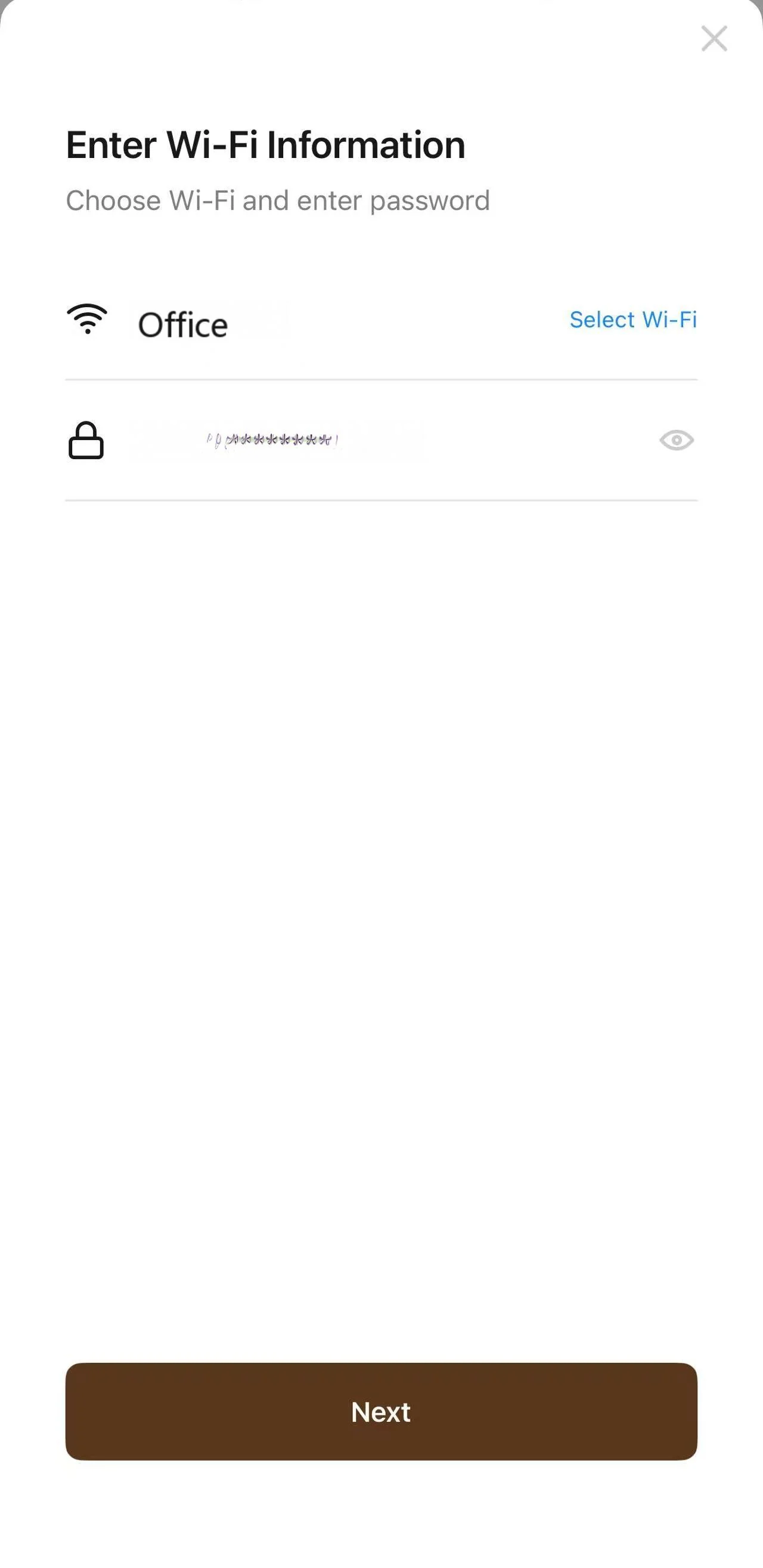
Wi-Fi information screen for connecting the Mini Alarm Hub
Connect and finishEnter the 2.4 GHz Wi-Fi information. Rename the Hub if required, then tap Done.
Success check: the named Hub appears inside the selected Zone.

Pair Apeiron Guard sensors

Add sensors one at a time and trigger each device only after the App displays Awaiting Pairing.

1

Start sensor pairing

Open the selected Hub and tap Add Sensor. Wait until the App shows Awaiting Pairing.

  • Pair one sensor at a time.
  • Keep the phone and Hub nearby during setup.
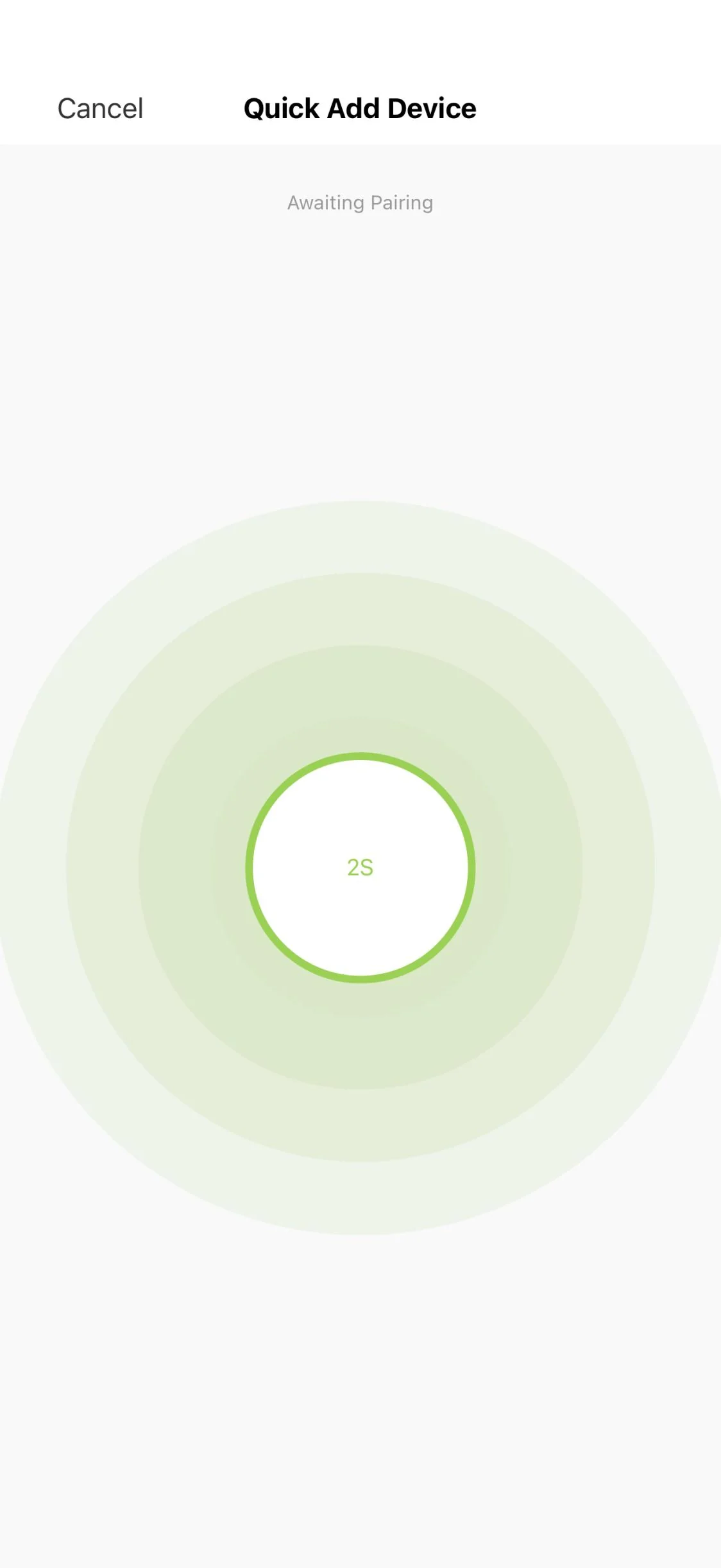
Apeiron Guard App awaiting a sensor pairing signal
2

Trigger the sensor

For a Window Sensor, press and release the black roller. For an installed wall-top sensor, press the sensor. For an installed Door or Window Sensor, operate the protected opening once.

  • No sensor removal is required after installation.
  • Door and Window Sensors transmit on both opening and reclosing.
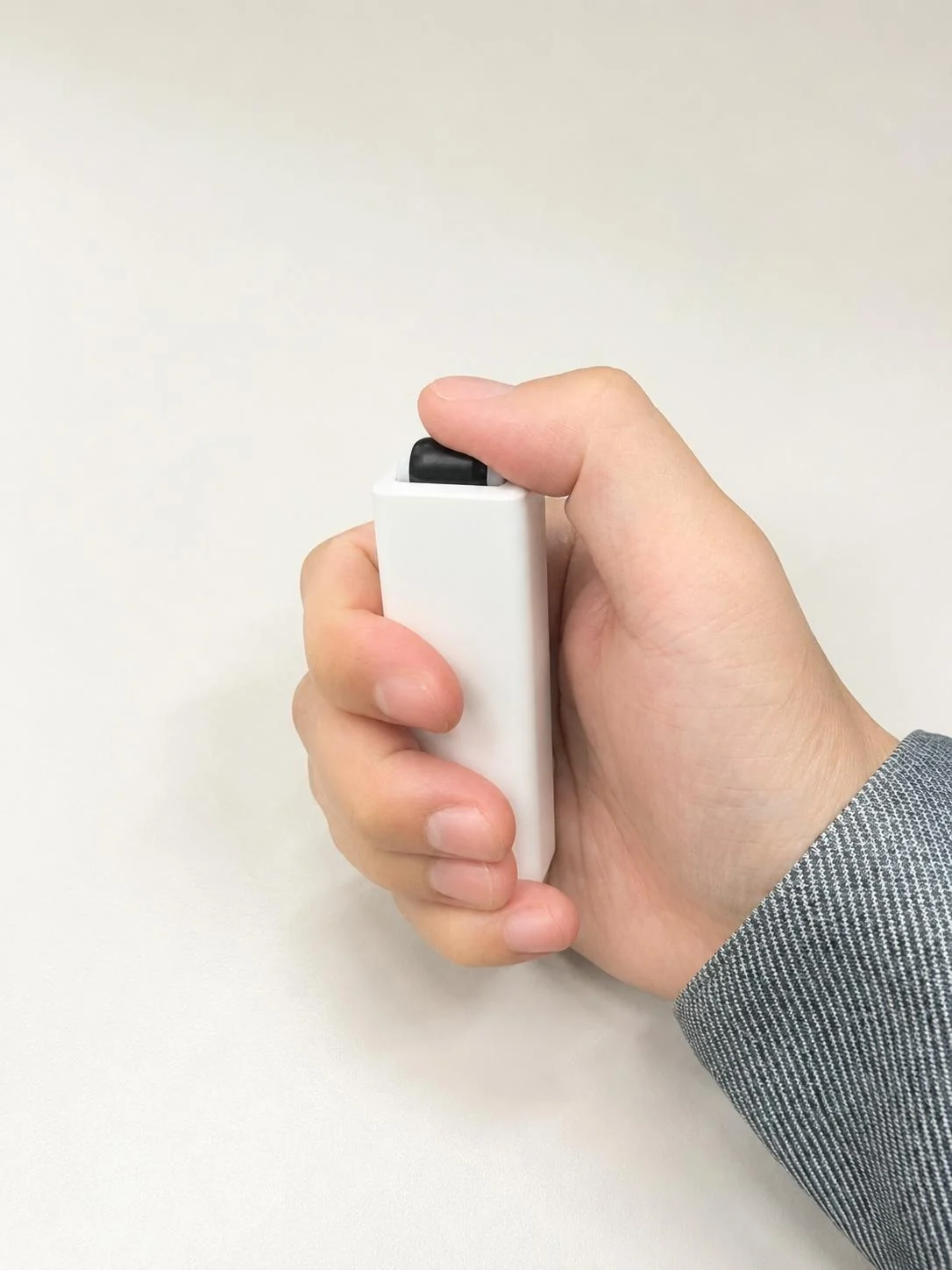
Hand pressing the black roller on an Apeiron Guard Window Sensor
3

Confirm the sensor type

When prompted, select the correct sensor type and tap Confirm. The paired sensor appears in the Hub sensor list.

  • Repeat the sequence for each additional sensor.
  • Use clear device names that match their physical locations.
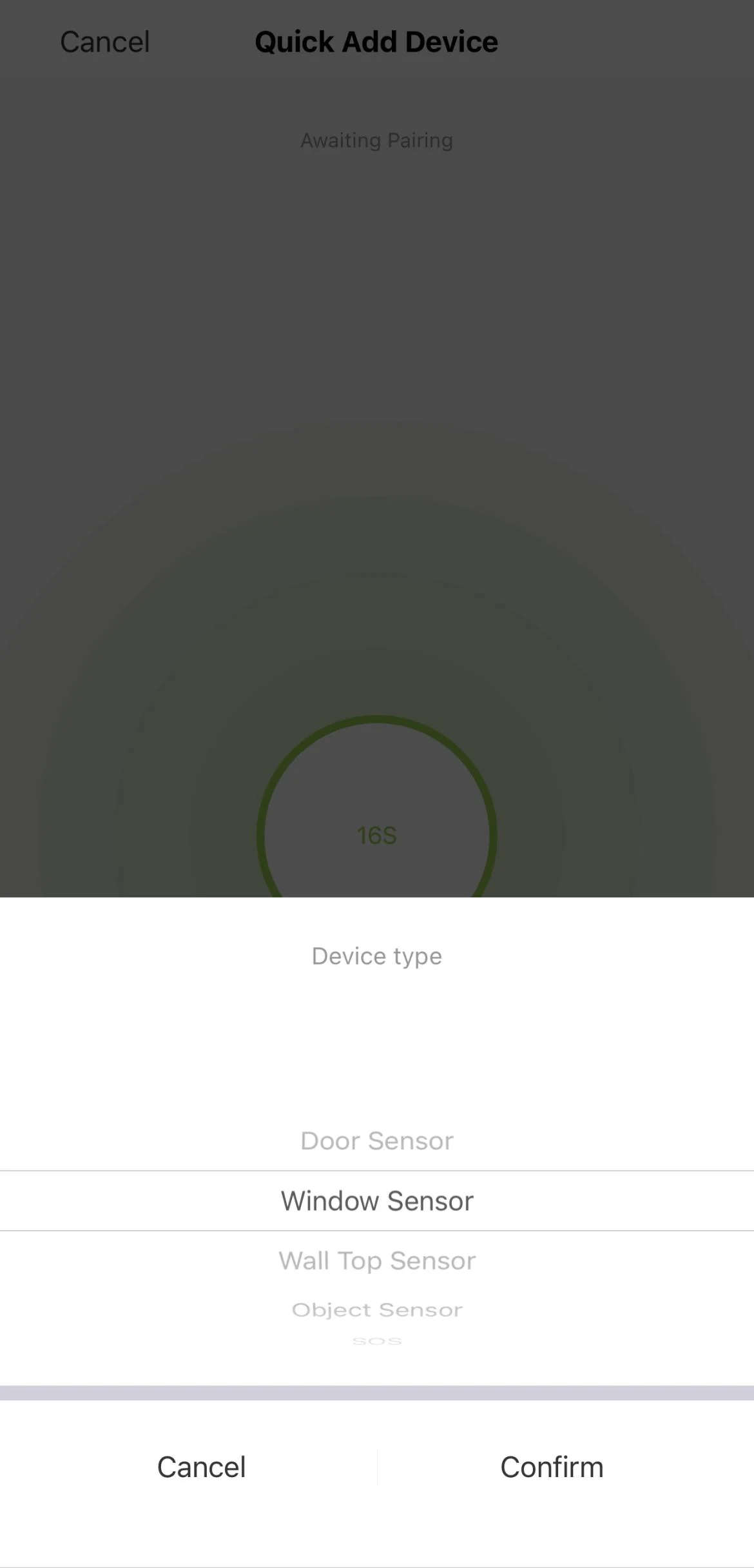
Sensor type selection and confirmation screen in the Apeiron Guard App

Arm the security system

Confirm every monitored opening is closed before switching on the Hub and its paired sensors.
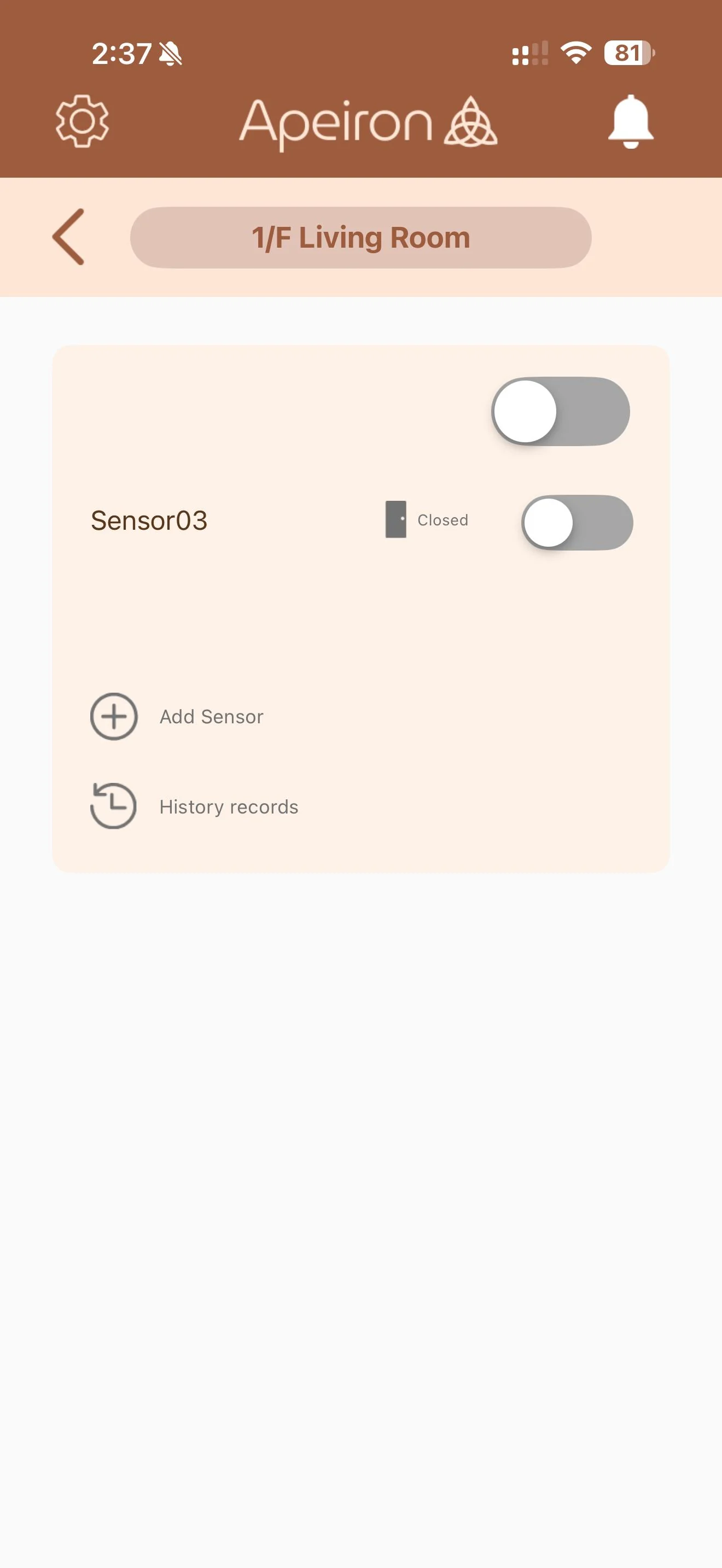
Hub sensor page before the security system is armed
Check sensor statusClose all monitored doors and windows and confirm each status shows Closed.
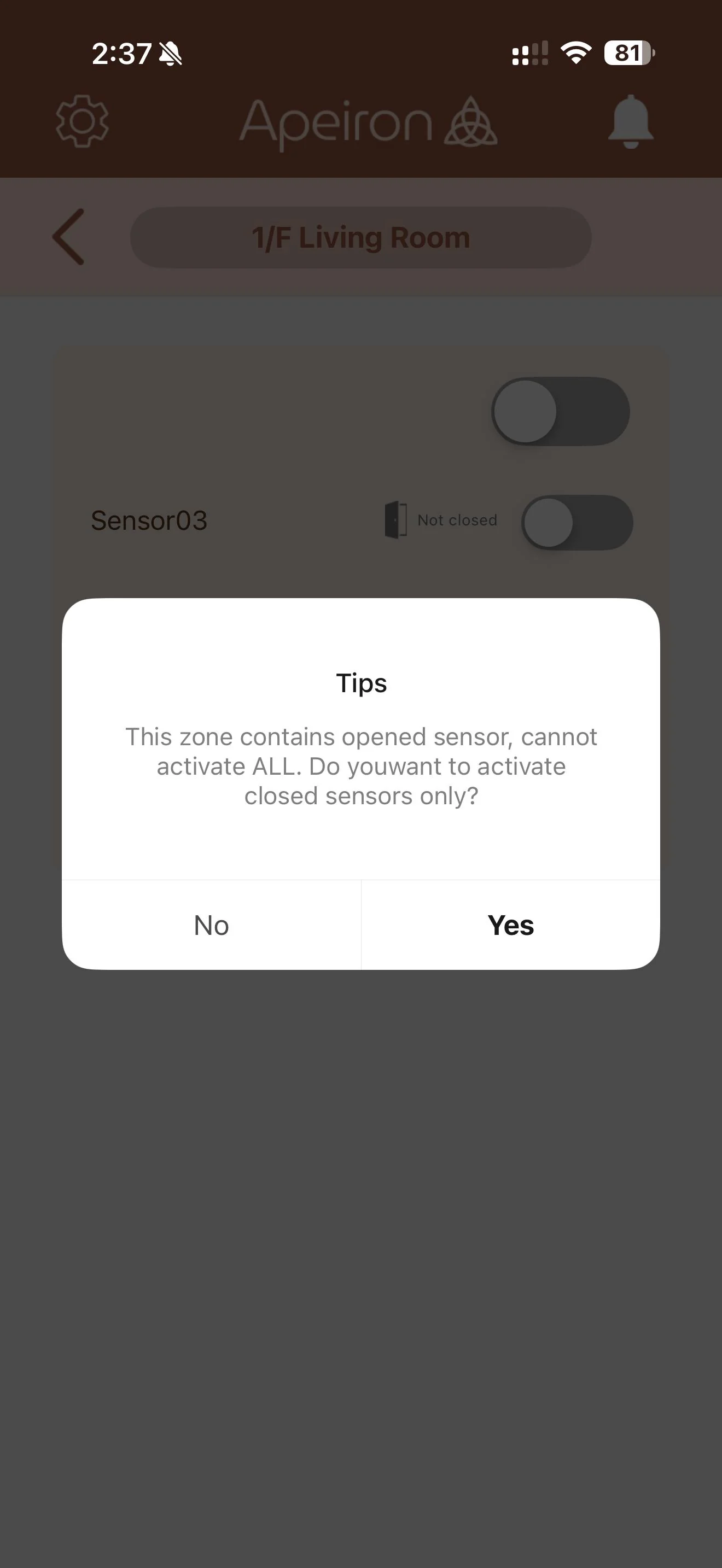
Open sensor warning in the Apeiron Guard App
Resolve open sensorsTap No, close the relevant opening and try again. Yes arms only the sensors that are already closed.
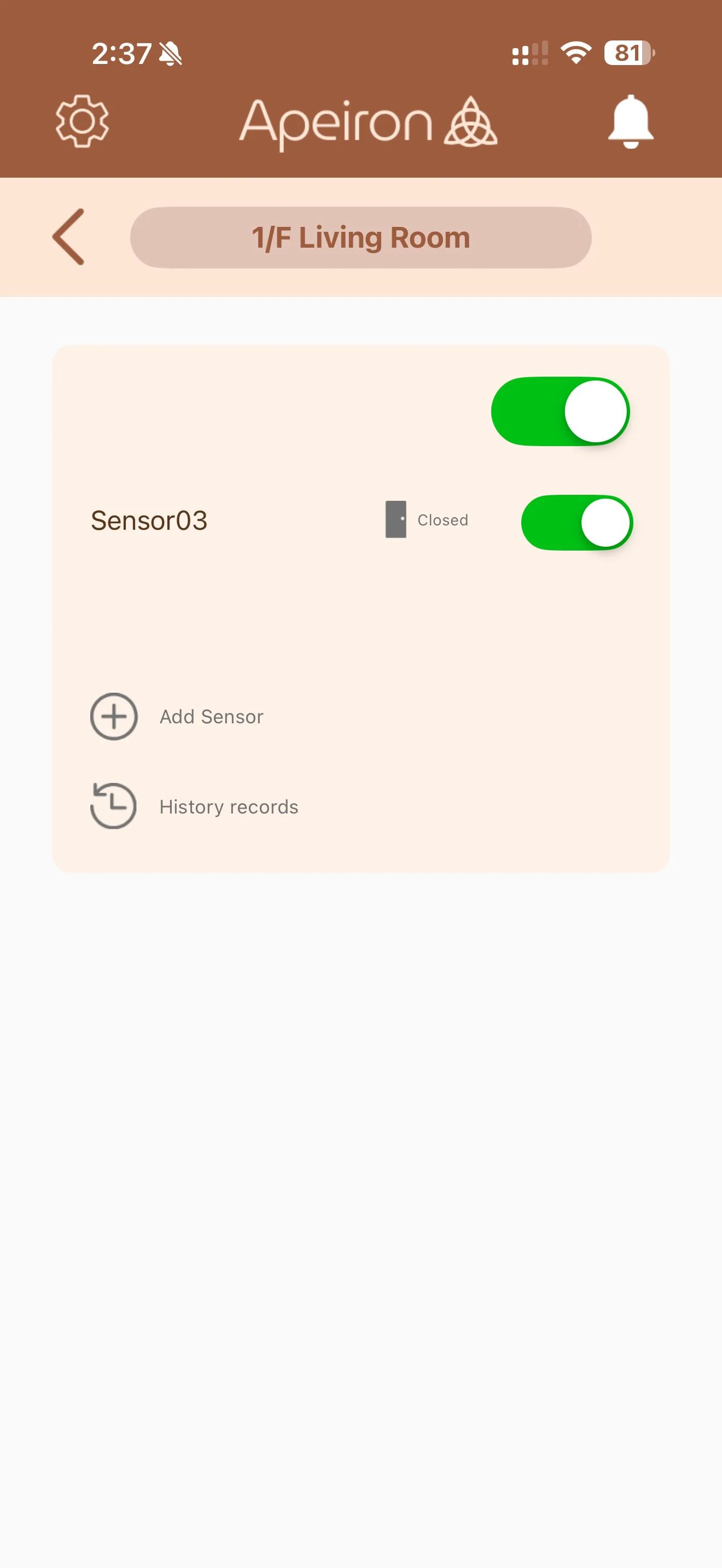
Apeiron Guard App showing green switches for an armed system
Arm the systemTurn on the main switch at the top right. The switches turn green when active.
Door and Window Sensor behaviour: if the system is armed while an opening sensor is open, reclosing that door or window can trigger the armed-zone alarm.

Clear alarms and review history

Inspect every alarm before clearing it, then use History records to review the event details.
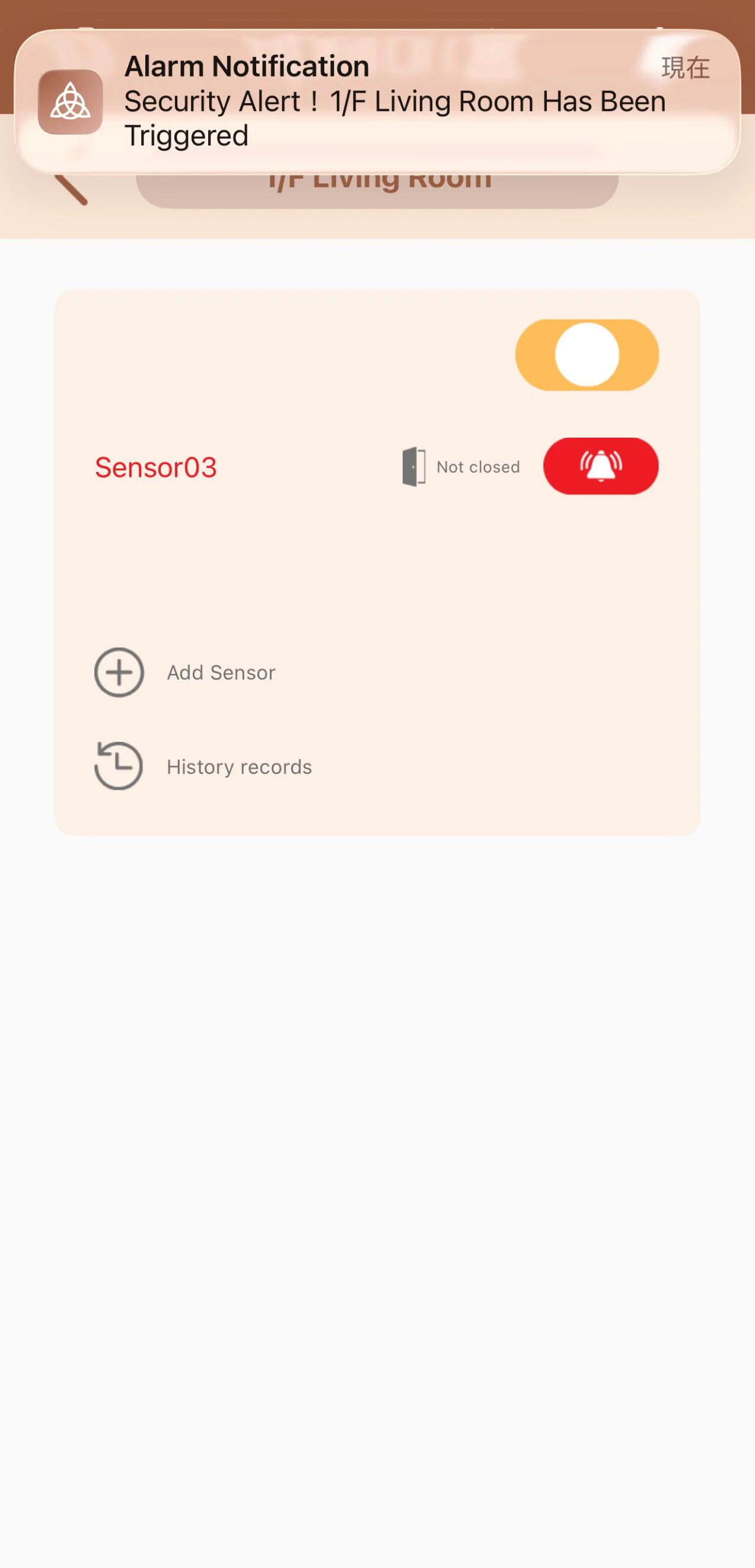
Mobile notification and red sensor state after an alarm
Receive the alertA triggered sensor produces the configured Hub alarm and mobile notification.
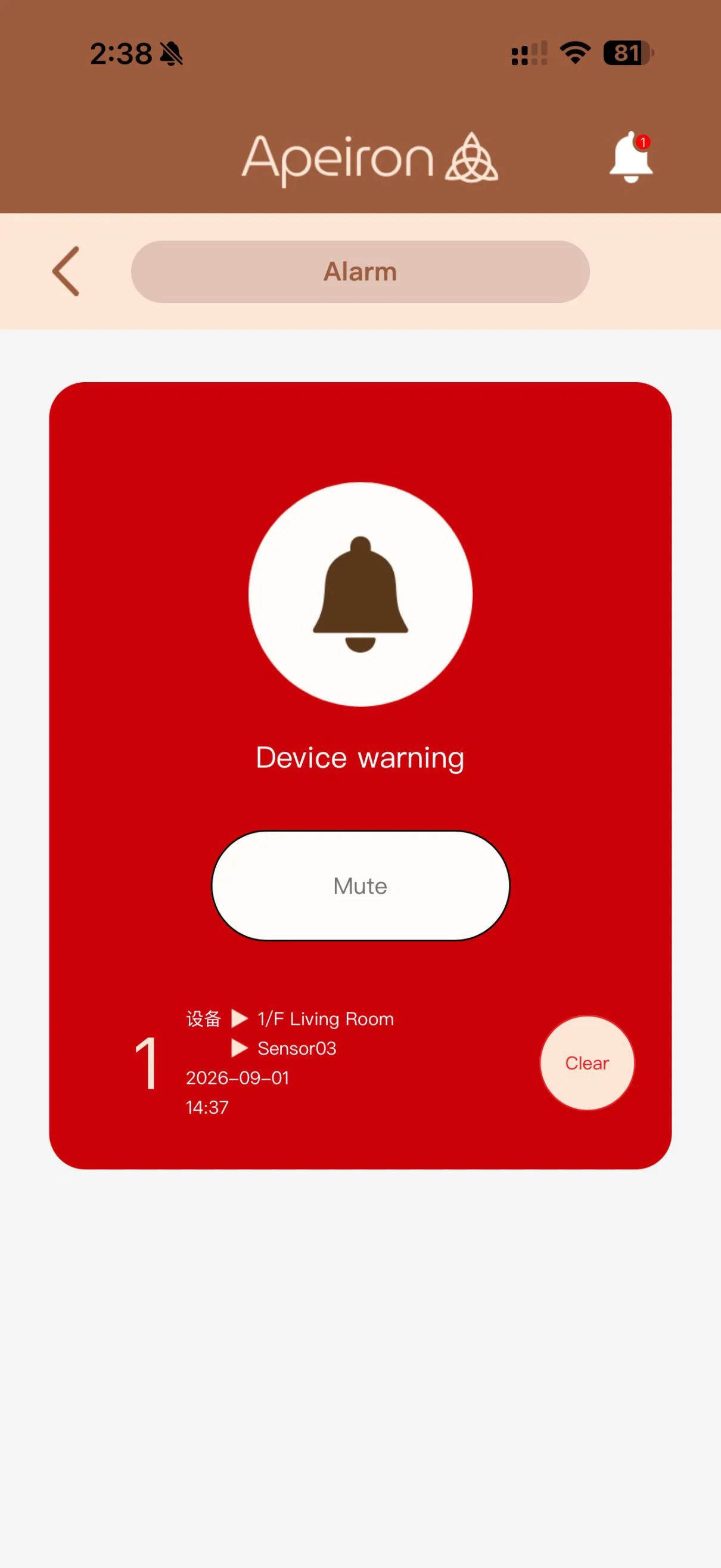
Red Alarm page with a Clear control
Inspect and clearTap the bell icon, check the red Alarm page, then tap Clear.
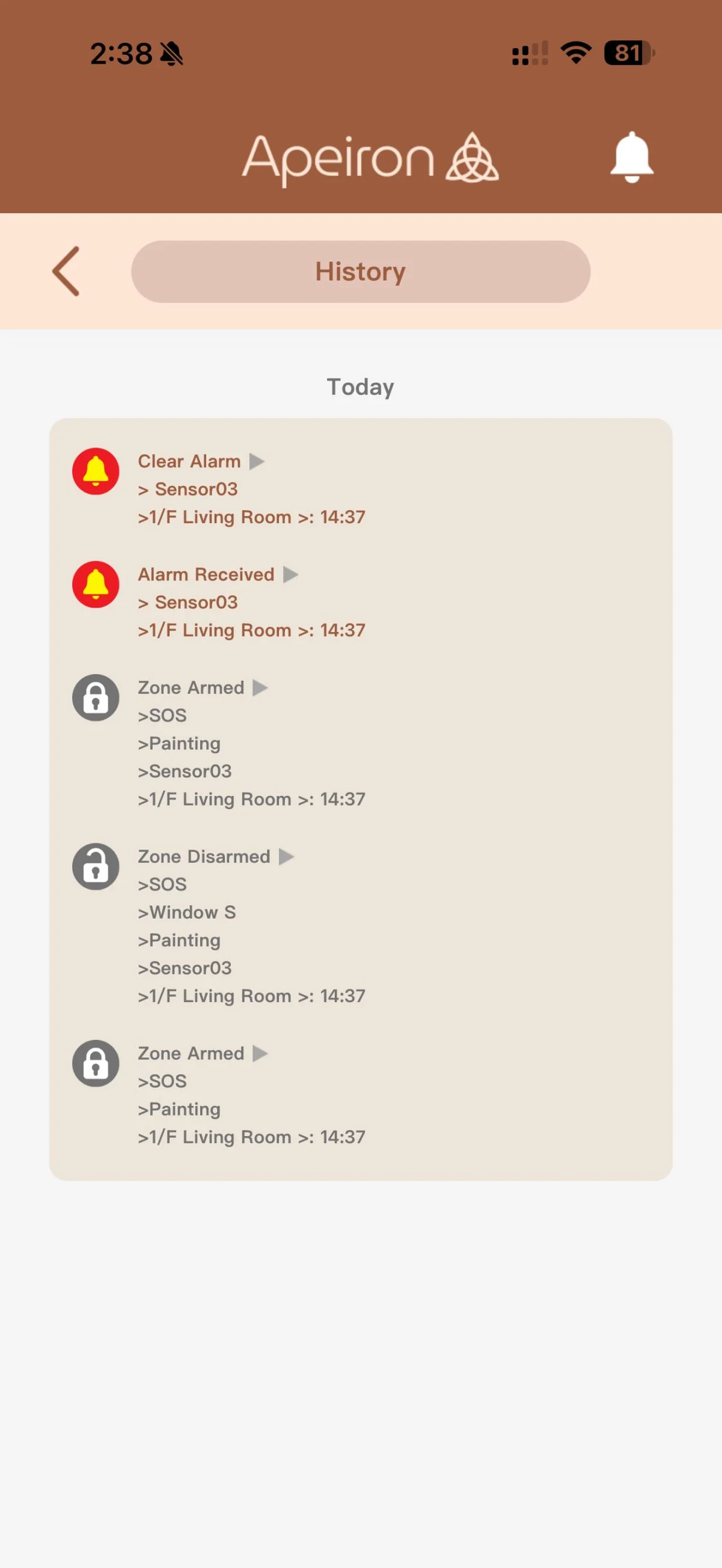
Sensor event history records in the Apeiron Guard App
Review historyHistory records show the sensor ID, Zone and event time.

Share the system with family

Invite another Apeiron Guard account to use the same Hub and paired sensors without repeating pairing.
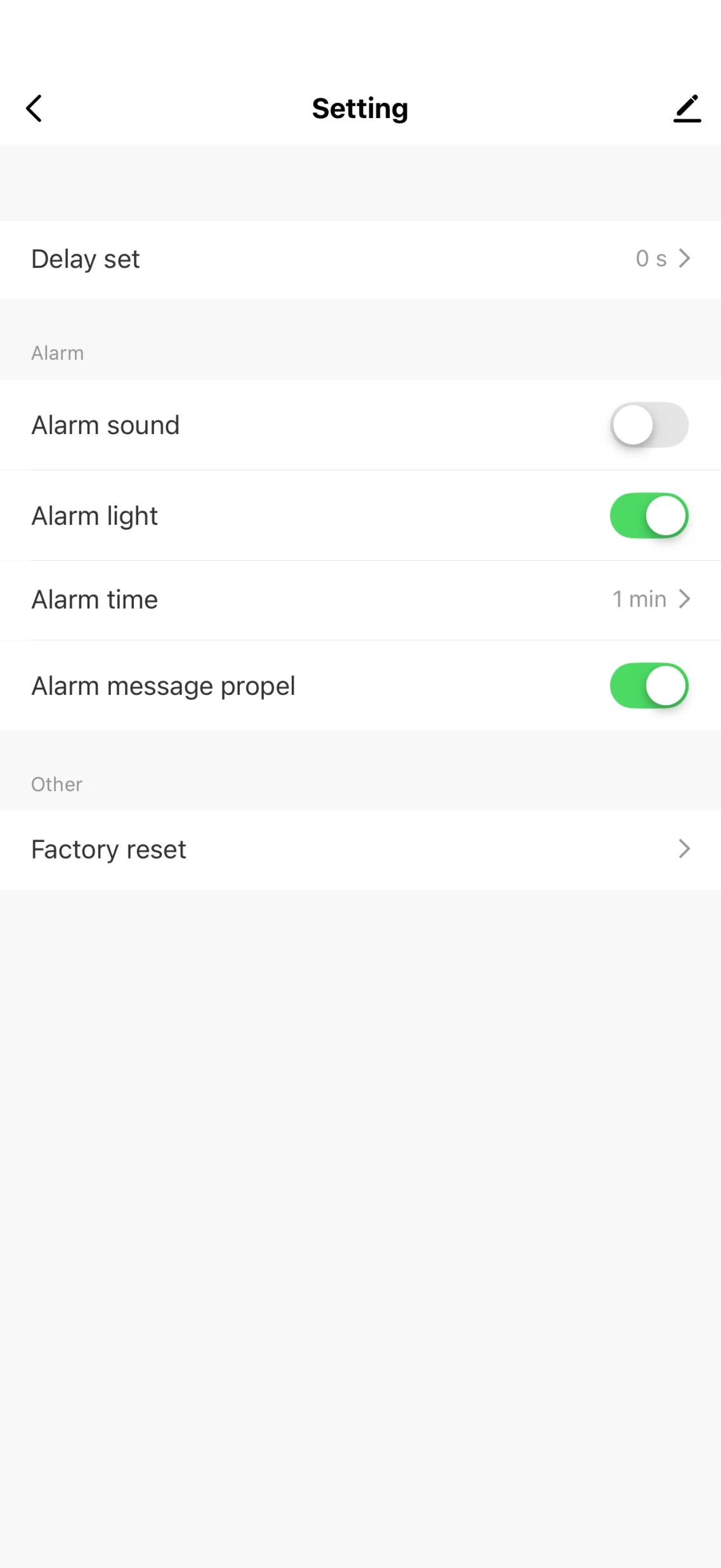
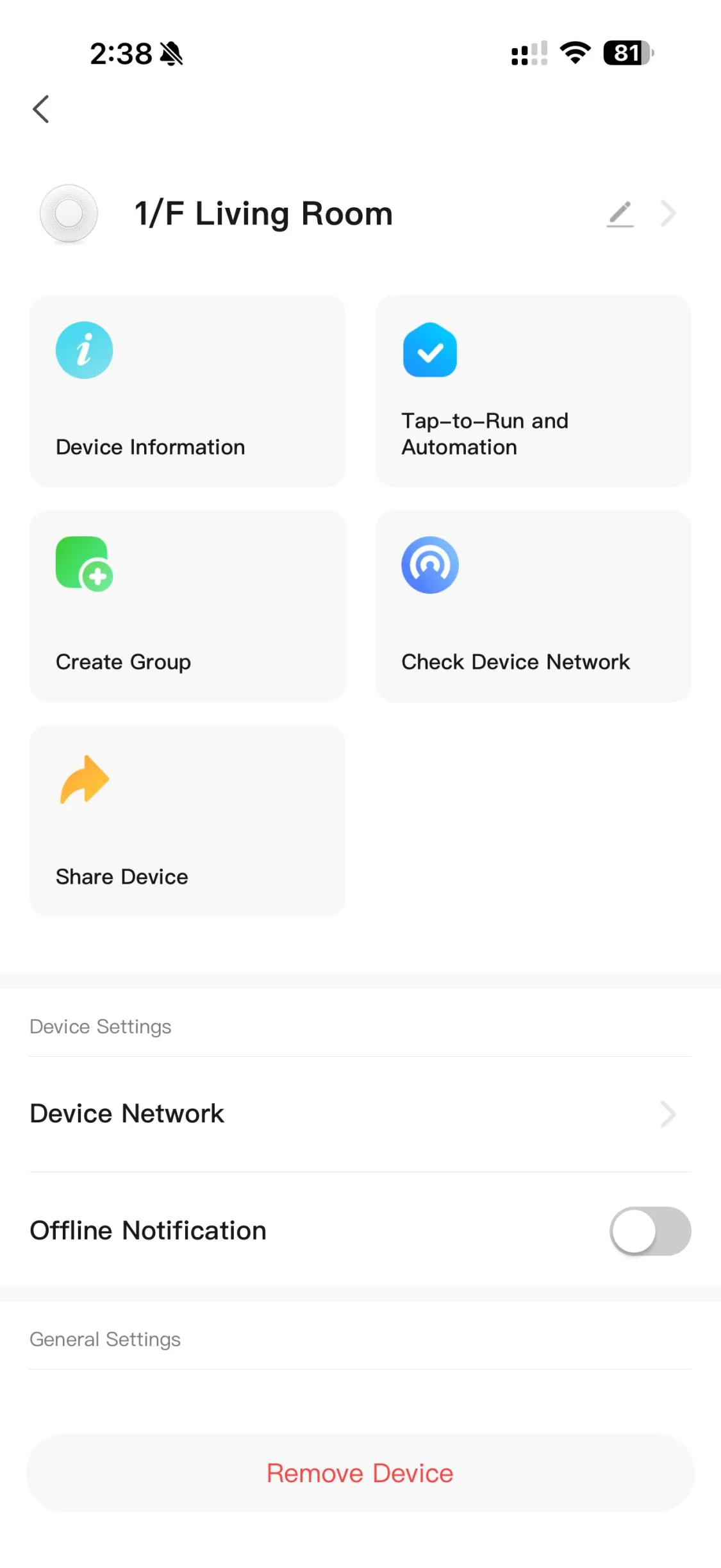
Mini Alarm Hub settings page in the Apeiron Guard App
Open Hub settingsTap the settings icon, then the pencil icon at the top right.
Share Device control in Mini Alarm Hub settings
Select Share DeviceShare directly with an existing Apeiron Guard account or create an invitation.
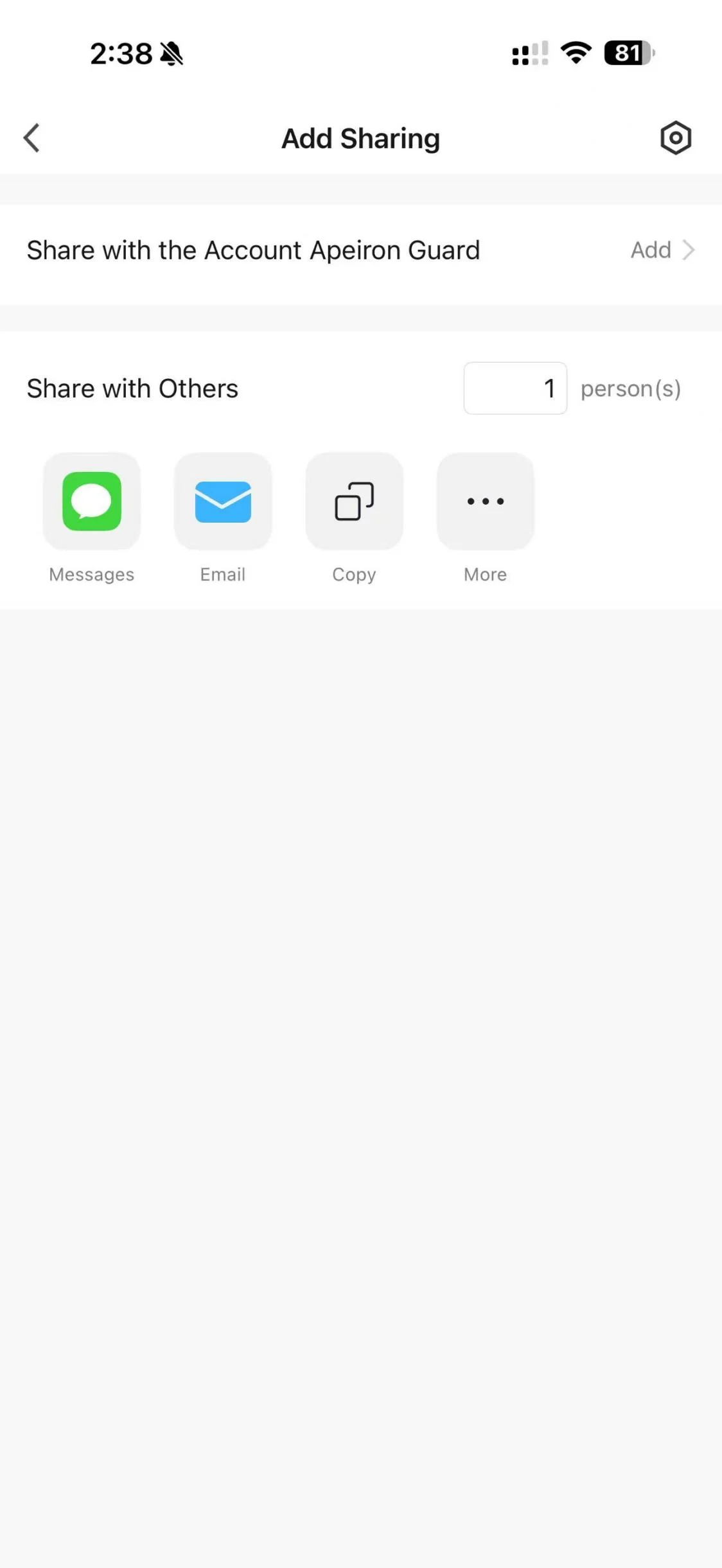
Phone share sheet for sending a Mini Alarm Hub invitation
Send the invitationUse Messages, Email or Copy. The recipient accepts it and adds the shared device in the App.

Device maintenance for installers

These operations can change device ownership, pairing data or software state. They should be performed by an installer or qualified technician.
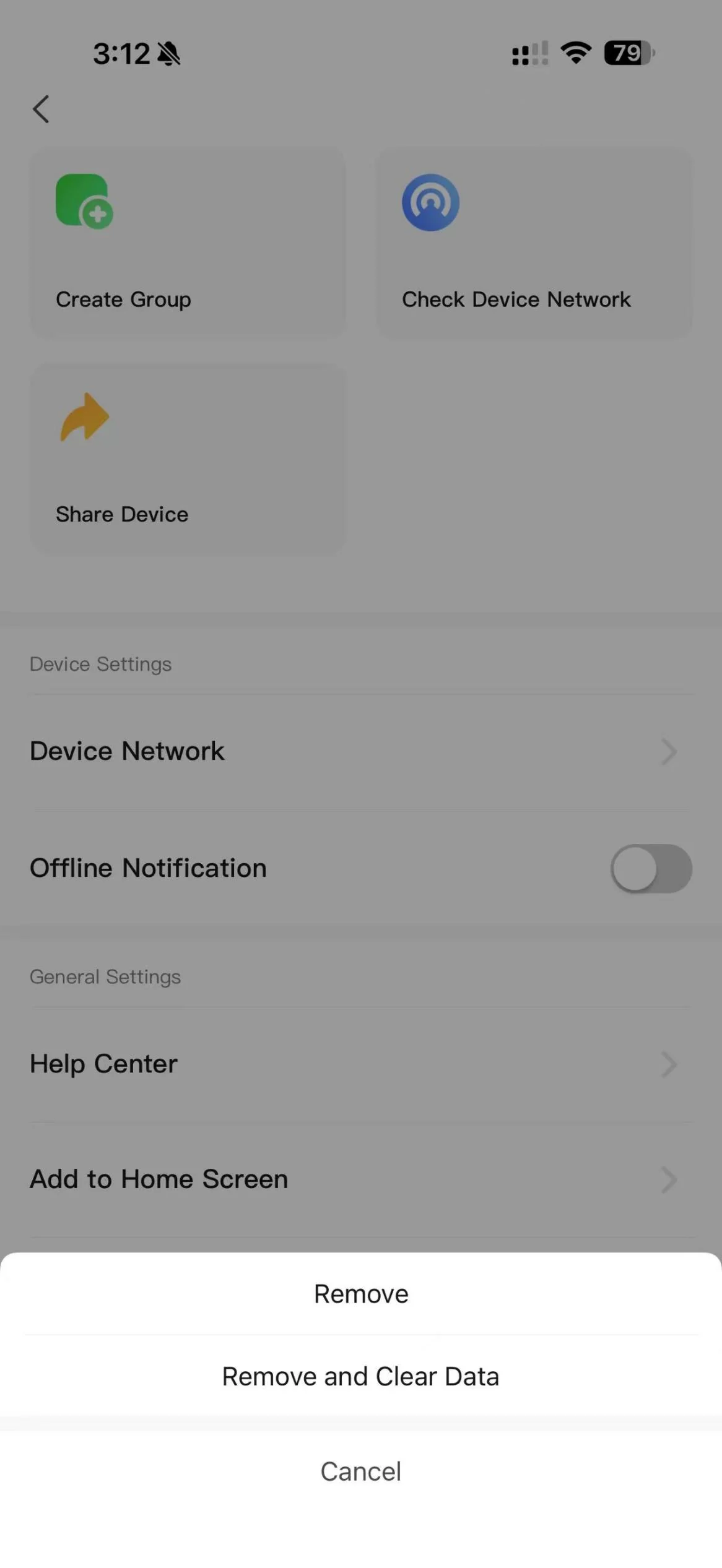
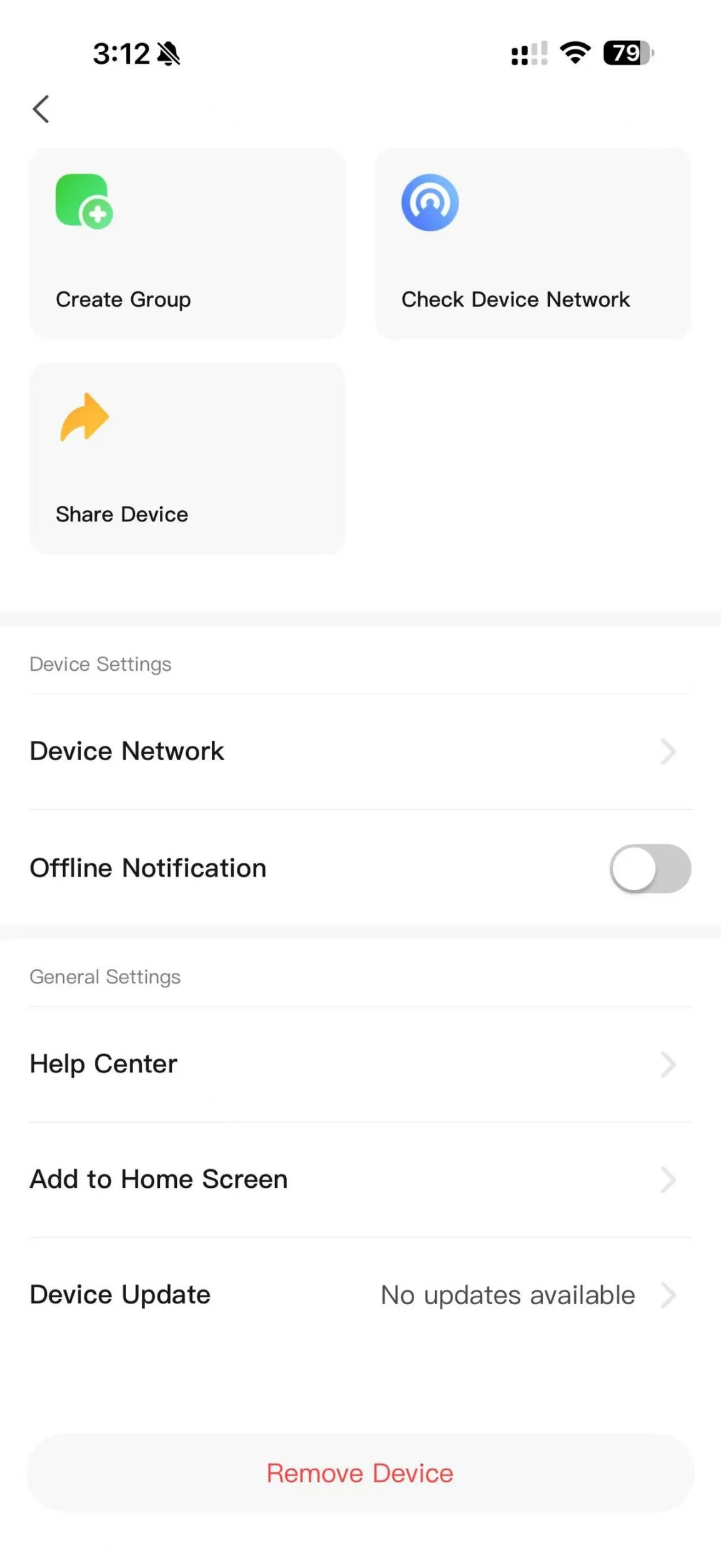
Installer use only. Removing a device and clearing its data can require the Hub and sensors to be paired again.
Remove Device and Remove and Clear Data options
Remove a deviceOpen Hub settings and tap Remove Device. Choose Remove and Clear Data only when the stored pairing data must also be deleted.
Device Update option in the Apeiron Guard App
Check for updatesFrom the App home page, open the profile icon, then Settings and Device Update.
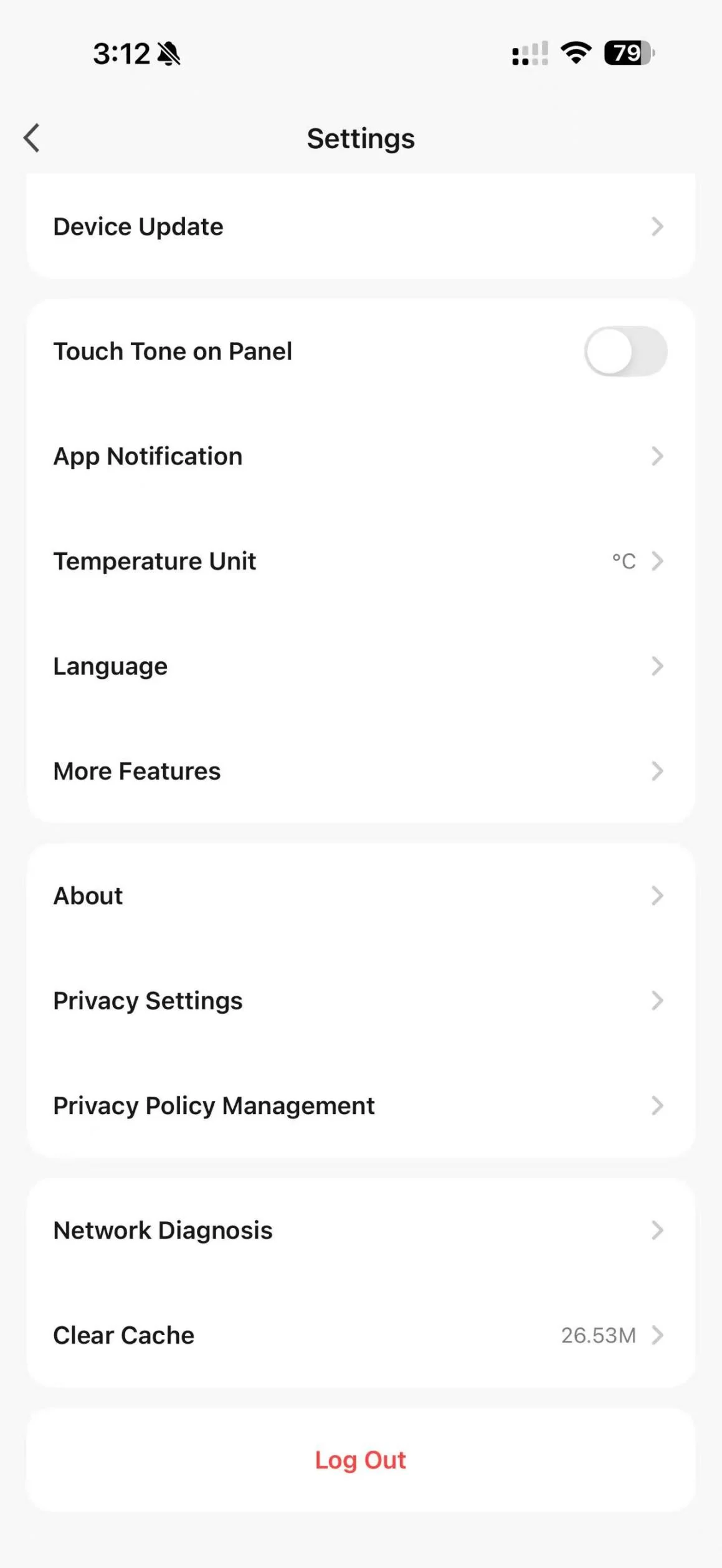
Apeiron Guard App settings page including Clear Cache
Clear temporary filesIf the App responds slowly, use Clear Cache near the bottom of the Settings page.

Troubleshooting

Check these common causes before removing devices or clearing pairing data.

The Hub does not appear in Add Device

Confirm the Hub indicator is flashing, the phone is connected to the intended 2.4 GHz Wi-Fi network and the Hub remains powered. Restart pairing mode and try discovery again.

The Hub will not connect to Wi-Fi

Confirm the network is 2.4 GHz, re-enter the correct Wi-Fi information and move the Hub temporarily closer to the router. A 5 GHz-only network is not supported.

A sensor is not detected

Wait for Awaiting Pairing before triggering the sensor. Operate the sensor once, keep it near the Hub for the first attempt and confirm that the correct sensor type is selected.

An open-sensor warning appears while arming

Tap No, close the relevant door or window and arm again. If Yes is selected, only closed sensors are activated and open sensors remain inactive.

The App is responding slowly

Open the App profile, select Settings and use Clear Cache. Do not remove the device or clear pairing data unless instructed by a qualified installer.